Run Linux VM on macOS with Lima and Colima
Running Linux virtual machines on macOS has become essential for developers working with containers, Kubernetes, and cloud-native technologies. Lima (Linux on macOS) and Colima (Containers on Lima) provide an elegant solution for running Linux workloads on Mac with minimal overhead and maximum compatibility.
What is Lima?
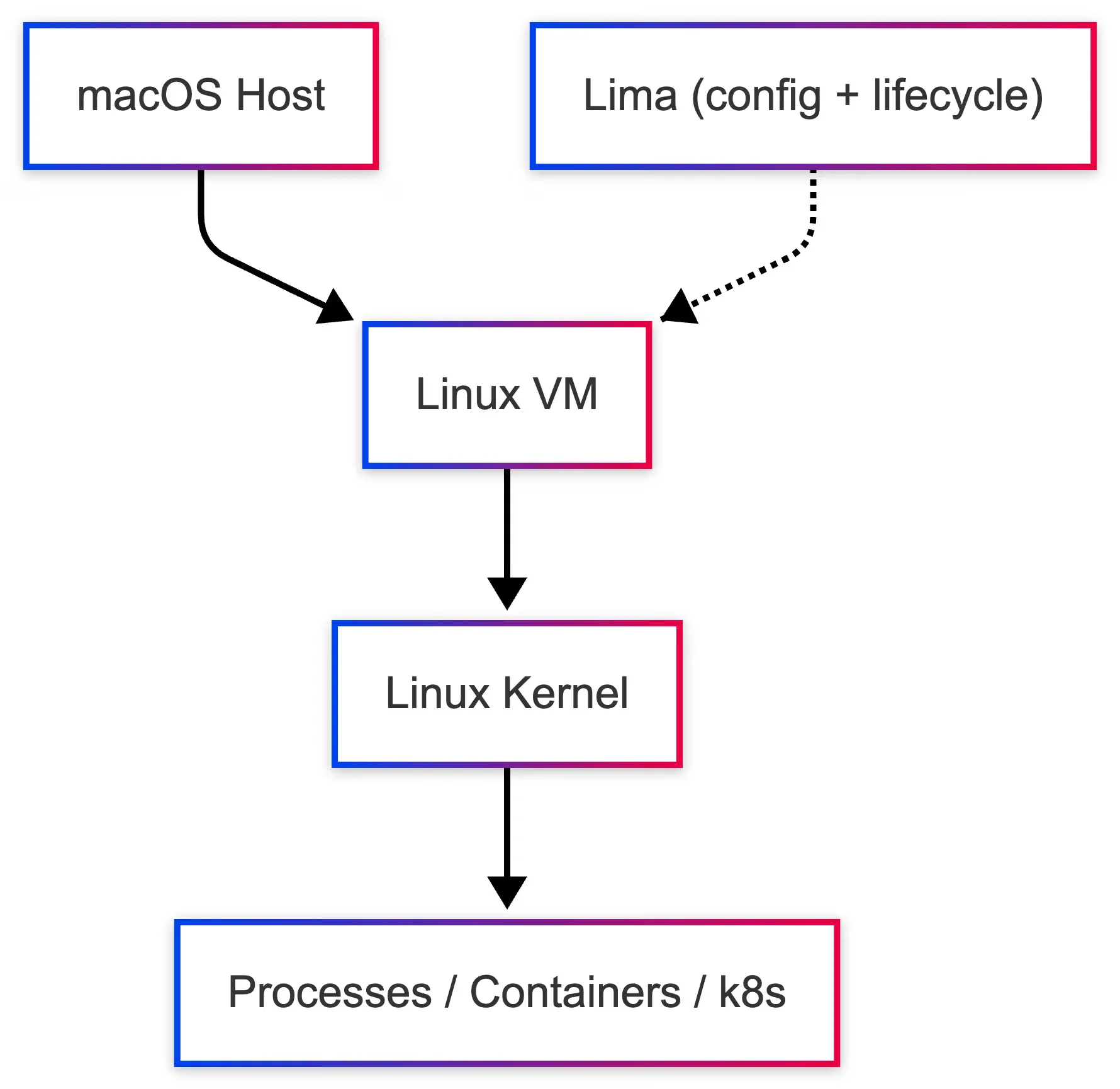
Lima is a project that launches Linux virtual machines on macOS with automatic file sharing and port forwarding. It provides a lightweight alternative to traditional VM solutions, optimized specifically for container workloads and development environments.
What is Colima?
Colima (Containers on Lima) builds on top of Lima to provide container runtimes on macOS with minimal setup. It leverages Lima’s lightweight VMs to enable running containers natively on macOS, supporting Docker, Containerd, and Incus runtimes with optional Kubernetes integration.
Key Features
Lima Features
- Lightweight VMs: Minimal resource overhead compared to traditional virtualization
- Automatic File Sharing: Seamless access between macOS and Linux VM
- Port Forwarding: Automatic forwarding of ports from VM to host
- Multiple Instances: Run multiple Linux VMs simultaneously
- Apple Silicon Support: Native support for M1/M2/M3 chips
Colima Features
- Multiple Container Runtimes: Docker, Containerd, or Incus
- Kubernetes Ready: Enable K8s with a simple
--kubernetesflag - GPU Acceleration: Support for AI/ML workloads on Apple Silicon (macOS 13+)
- Simple CLI: Sensible defaults with easy customization
- Cross-platform: Works on Intel and Apple Silicon macOS, plus Linux
Installation
Install Lima
# Using Homebrew
brew install lima
Install Colima
# Using Homebrew
brew install colima

# Using MacPorts
sudo port install colima

# Using Nix
nix-env -iA nixpkgs.colima

# Using Mise
mise use -g colima@latest
Getting Started
Basic Setup
Start Colima with default settings:
colima start
This creates a VM with sensible defaults:
- 2 CPUs
- 2GiB memory
- 100GiB storage
Docker Runtime
# Start Colima with Docker
colima start

# Use Docker normally
docker run hello-world
docker ps
Containerd Runtime
# Start with Containerd
colima start --runtime containerd

# Use nerdctl
nerdctl run hello-world
nerdctl ps

# Optional: Install nerdctl alias
nerdctl install
Kubernetes Cluster
# Start with Kubernetes
colima start --kubernetes

# Use kubectl
kubectl run caddy --image=caddy
kubectl get pods
Incus Runtime
# Start with Incus
colima start --runtime incus

# Launch containers
incus launch images:alpine/edge
incus list
VM Customization
Resource Allocation
# Create VM with custom resources
colima start --cpu 4 --memory 8 --disk 100

# Modify existing VM
colima stop
colima start --cpu 4 --memory 8
Advanced Configuration
# Edit configuration file
colima start --edit

# Enable Rosetta 2 emulation (Apple Silicon, macOS 13+)
colima start --vm-type=vz --vz-rosetta

# Use different VM type
colima start --vm-type=vz
AI and GPU Acceleration
For AI workloads on Apple Silicon (macOS 13+):
# Install krunkit for GPU acceleration
brew tap slp/krunkit
brew install krunkit

# Start with GPU support
colima start --runtime docker --vm-type krunkit

# Run AI models
colima model run gemma3
colima model run llama3.2
Configuration File
Create a persistent configuration file at ~/.colima/default.yaml:
cpu: 4
memory: 8
disk: 100
runtime: docker
kubernetes:
  enabled: true
autoActivate: true
sshConfig: true
portForward: true
volumeMounts:
  - location: ~/Projects
    writable: true
Benefits for Developers
| Benefit | Description |
|---|---|
| Minimal Setup | Get container runtimes running with a single command |
| Native Docker CLI | Use standard Docker commands without extra configuration |
| Multiple Runtimes | Switch between Docker, Containerd, or Incus based on needs |
| Resource Efficient | Sensible defaults with easy customization |
| AI/ML Support | GPU-accelerated containers for AI workloads on Apple Silicon |
| Well Integrated | Automatic port forwarding and volume mounts work seamlessly |
| Open Source | MIT licensed with active community support |
Common Commands
# View status
colima status

# Stop VM
colima stop

# Delete VM
colima delete

# View logs
colima logs

# SSH into VM
colima ssh

# Update Colima
colima update
Troubleshooting
Check VM Status
colima status
lima list
Reset Everything
colima delete
colima start
View Detailed Logs
colima logs --follow
Comparison with Alternatives
vs. Docker Desktop
- Lighter weight: Less resource consumption
- Open source: Fully open source (MIT license)
- Flexible: Multiple runtime support out of the box
- Native: Better integration with macOS virtualization framework
vs. Multipass
- Container-focused: Optimized for container workloads
- Simpler setup: Fewer configuration steps
- Better macOS integration: Automatic port forwarding and file sharing
Conclusion
Lima and Colima provide an excellent solution for running Linux VMs and container workloads on macOS. With minimal setup, multiple runtime support, and efficient resource usage, they’re ideal for developers needing Linux environments on Mac hardware. Whether you’re working with Docker, Kubernetes, or AI models, Colima offers a streamlined experience that integrates seamlessly with your existing workflows.
The combination of Lima’s lightweight virtualization and Colima’s container runtime management makes this stack a compelling alternative to traditional solutions like Docker Desktop, especially for developers working on Apple Silicon Macs.