Proxmox Datacenter Manager: Complete Guide

Proxmox Datacenter Manager (PDM) is a centralized management platform for overseeing multiple Proxmox VE clusters and Proxmox Backup Server instances from a single interface. This guide covers installation, configuration, and best practices for managing your virtualization infrastructure at scale.
What is Proxmox Datacenter Manager?
Proxmox Datacenter Manager is a centralized management platform that provides:
- Multi-cluster management - Control multiple Proxmox VE clusters from one interface
- Unified monitoring - Centralized dashboards for all your infrastructure
- Backup management - Integrate Proxmox Backup Server instances
- Role-based access control - Granular permissions across clusters
- Audit logging - Track all administrative actions
- Disaster recovery - Centralized backup and restore operations
┌─────────────────────────────────────────────────────────┐
│          Proxmox Datacenter Manager (PDM)               │
│                    Web Interface                        │
└────────────┬──────────────────────┬─────────────────────┘
             │                      │
    ┌────────┴────────┐    ┌────────┴────────┐
    │  Cluster A      │    │  Cluster B      │
    │  Proxmox VE     │    │  Proxmox VE     │
    │  - Node 1       │    │  - Node 4       │
    │  - Node 2       │    │  - Node 5       │
    │  - Node 3       │    │  - Node 6       │
    └────────┬────────┘    └────────┬────────┘
             │                      │
    ┌────────┴──────────────────────┴────────┐
    │      Proxmox Backup Server             │
    │      - Centralized Backups             │
    │      - Deduplication                   │
    │      - Encryption                      │
    └────────────────────────────────────────┘
Why Use PDM in Practice?
After extended production use, PDM proves valuable for specific scenarios:
✅ What PDM Excels At
| Use Case | Real-World Benefit |
|---|---|
| Cross-cluster VM migration | Move workloads between totally separate clusters without manual export/import |
| Update visibility | See all available updates across all nodes and clusters in one dashboard |
| Unified task/log view | Review logs and tasks across all nodes with filtering by date, type, user, status |
| Capacity overview | Identify clusters approaching storage limits or underutilized hardware instantly |
| Lifecycle management | Track package details before updating, plan capacity and growth over time |
| Consistency enforcement | Prevent configuration drift and naming convention variations across clusters |
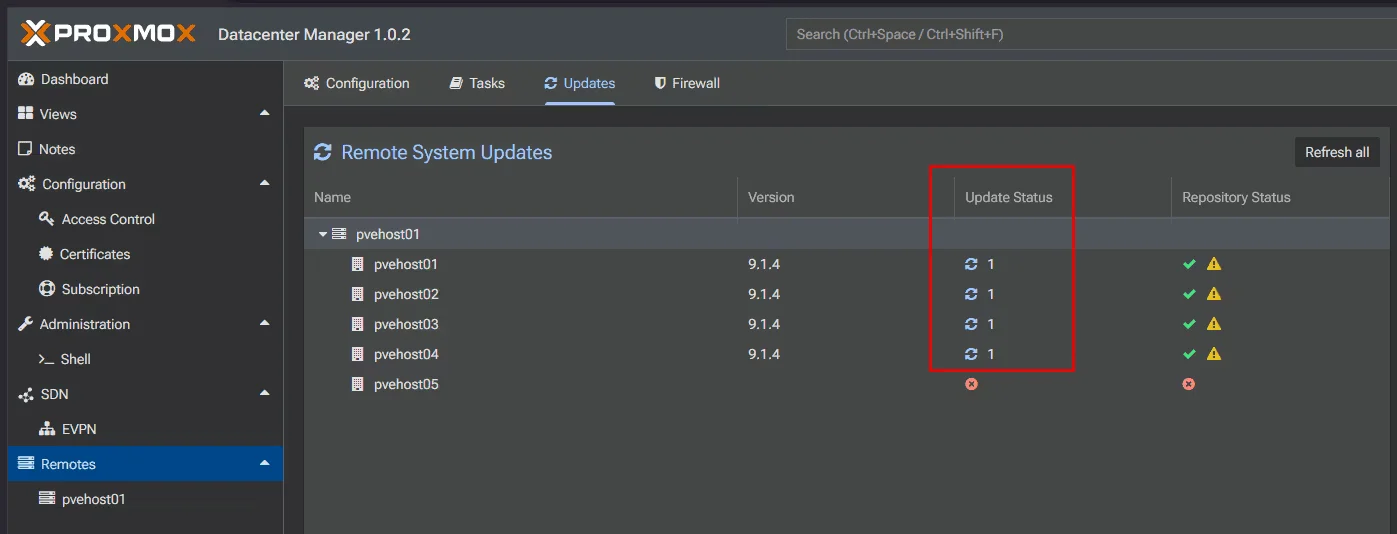 Update visibility across all nodes - see what needs patching at a glance
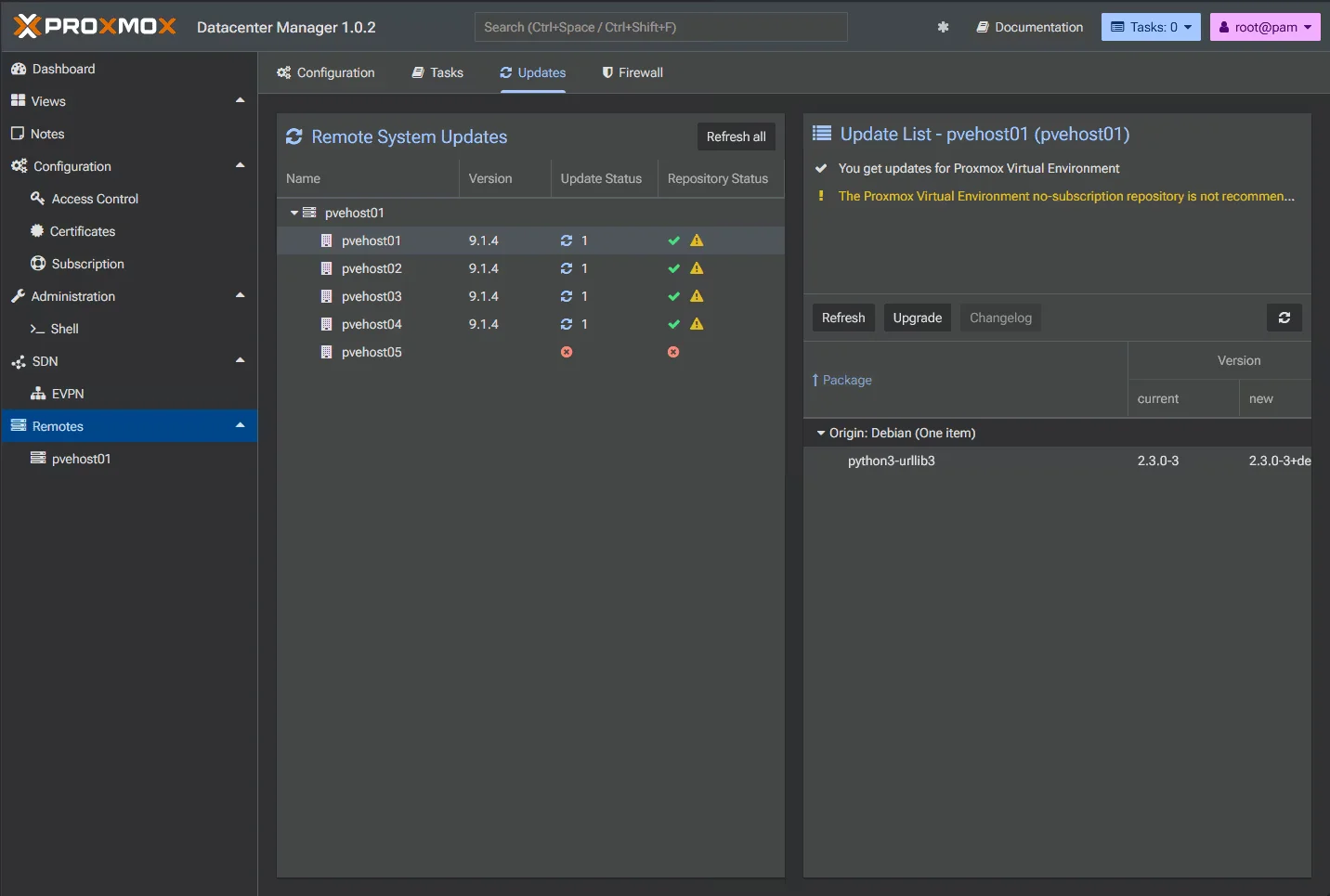 Drill down into specific package update details before applying
The Mindset Shift
PDM changes how you manage Proxmox infrastructure:
Before PDM (Bottom-Up):
- Log into each cluster’s web UI individually
- Check updates node by node
- Manual tracking of which VMs run where
- Inconsistent cleanup habits across clusters
- Hard to spot stale VMs or uneven resource usage
After PDM (Top-Down):
- Single pane of glass for entire environment
- Cluster-centric management (like VMware vSphere)
- See your entire Proxmox estate holistically
- Easy identification of optimization opportunities
- Consistent workflow as you add nodes/clusters
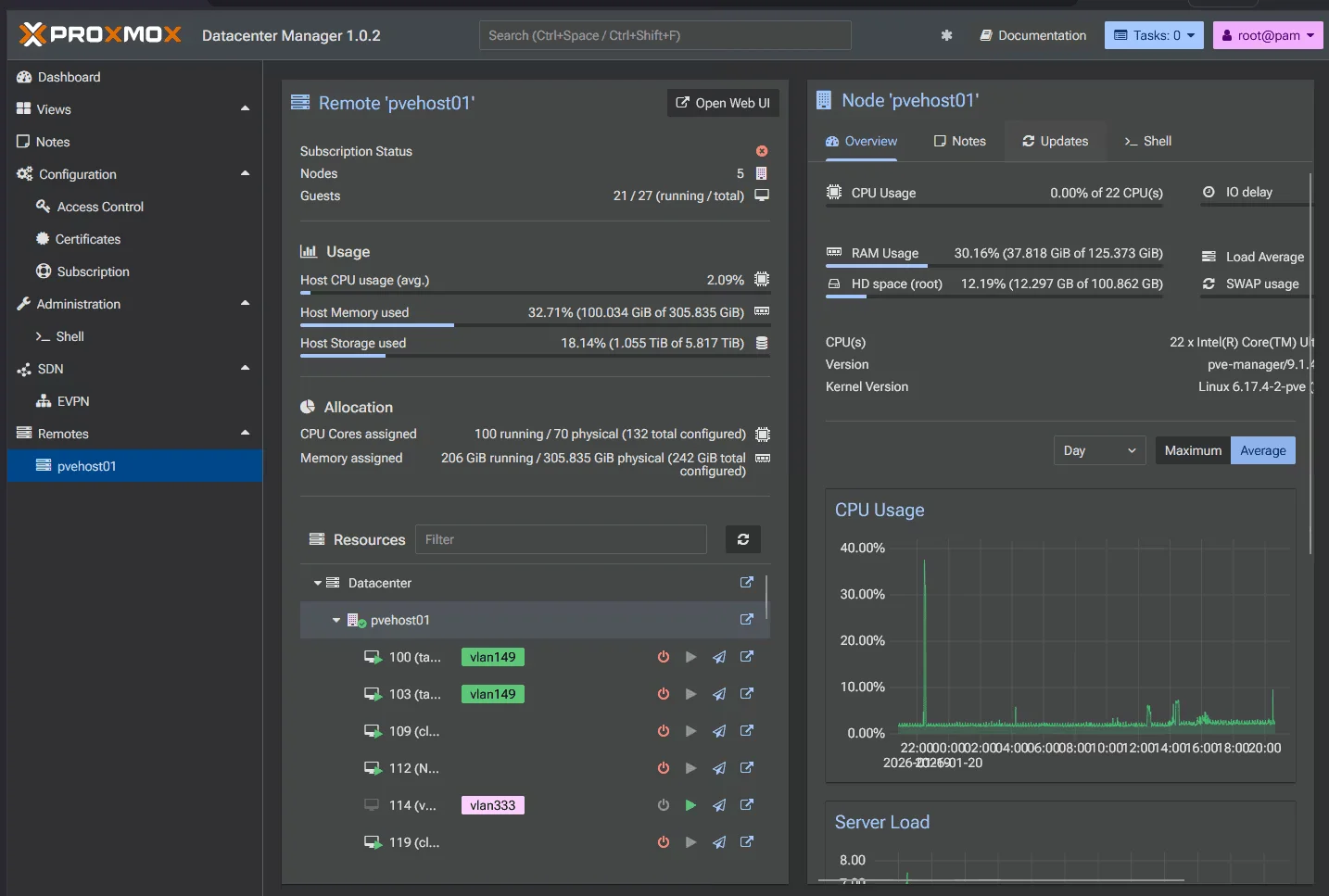 Holistic cluster overview - identify optimization opportunities at a glance
When PDM Is Worth It
Deploy PDM if you:
- Run multiple Proxmox clusters (2+ clusters)
- Have standalone Proxmox VE servers alongside clusters
- Manage infrastructure that’s permanent (not temporary test setups)
- Care about consistency and efficiency across your environment
- Plan to grow your lab gradually over time
PDM has limited value if:
- You have a single node or small static cluster
- Your environment doesn’t change much
- You only need basic VM power operations
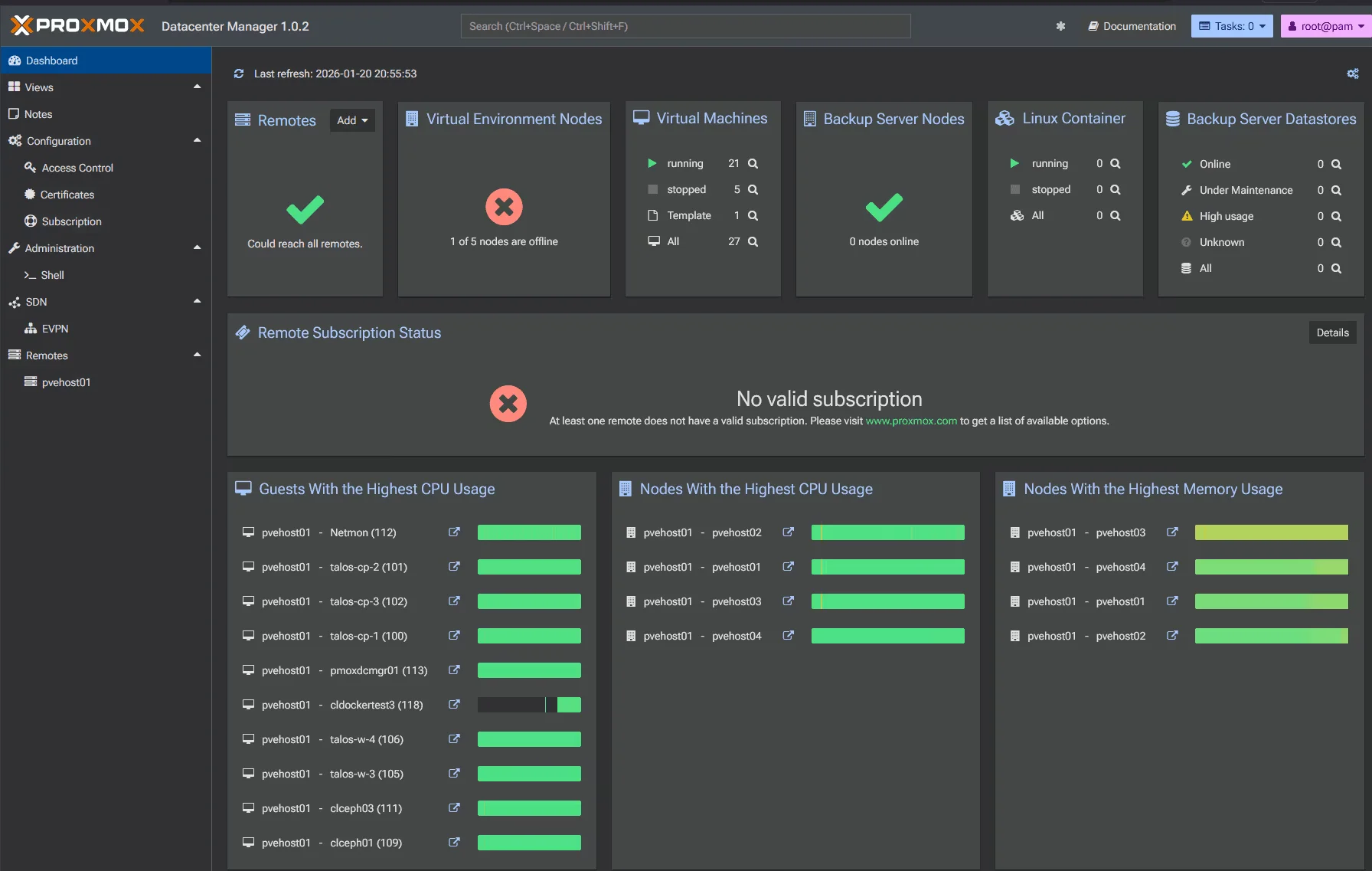 Resource capacity view - track storage, workloads, and utilization across clusters
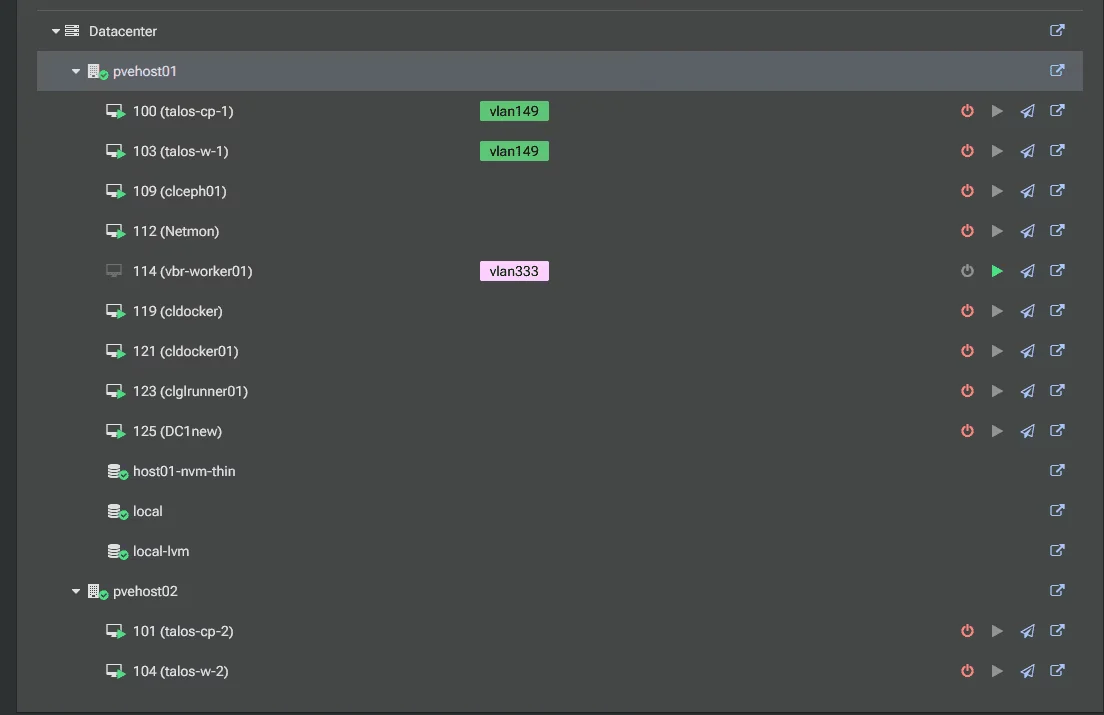 VM and container management view - see all workloads in one place
Real-World Scenario: Cross-Cluster Migration
One of PDM’s most valuable features is seamless VM migration between clusters:
Before PDM:
1. Export VM from Cluster A (qm dump)
2. Transfer image to Cluster B (scp/rsync)
3. Import VM on Cluster B (qm import)
4. Manually recreate network/storage config
5. Update DNS/documentation

With PDM:
1. Select VM in PDM interface
2. Click Migrate → Choose target cluster
3. PDM handles the rest
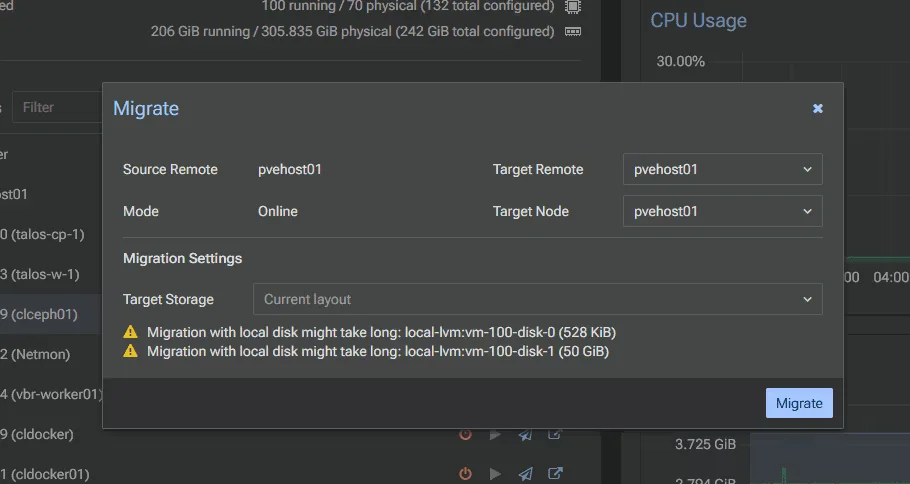 Cross-cluster migration wizard - select source and target seamlessly
This capability alone justifies PDM for multi-cluster environments, enabling:
- Load balancing across clusters during peak usage
- Hardware maintenance without downtime
- Disaster recovery by moving workloads to healthy clusters
- Resource optimization by consolidating underutilized clusters
Prerequisites
| Component | Requirement |
|---|---|
| PDM Server | Dedicated VM or physical server |
| CPU | 2+ cores (4+ recommended) |
| RAM | 4GB minimum (8GB+ recommended) |
| Storage | 50GB+ SSD |
| Network | Static IP, connectivity to all clusters |
| Proxmox VE | Version 7.4+ (8.x recommended) |
| Proxmox Backup Server | Version 2.x+ (optional) |
Installation
Method 1: Install on Debian 12 (Bookworm)
PDM can be installed on a fresh Debian 12 system:
# Add Proxmox repository
echo "deb http://download.proxmox.com/debian/pdm bookworm pdm-no-subscription" \
  > /etc/apt/sources.list.d/pdm.list

# Import repository key
wget -q https://enterprise.proxmox.com/debian/proxmox-release-bookworm.gpg \
  -O /etc/apt/trusted.gpg.d/proxmox-release-bookworm.gpg

# Update package lists
apt update

# Install Proxmox Datacenter Manager
apt install proxmox-datacenter-manager

# The installer will prompt for:
# - FQDN (e.g., pdm.mydomain.intra)
# - IP address
# - Gateway
# - DNS server
Method 2: Install on Proxmox VE
You can install PDM on an existing Proxmox VE node (not recommended for production):
# Add repository (if not already present)
echo "deb http://download.proxmox.com/debian/pdm bookworm pdm-no-subscription" \
  > /etc/apt/sources.list.d/pdm.list

# Update and install
apt update
apt install proxmox-datacenter-manager
Method 3: Deploy as VM (Recommended)
Download the PDM ISO and create a VM:
# Download PDM ISO
wget https://downloads.proxmox.com/iso/proxmox-datacenter-manager_1.0-1.iso \
  -O /var/lib/vz/template/iso/pdm.iso

# Create VM via CLI
qm create 100 --name pdm \
  --memory 4096 \
  --cores 2 \
  --bios ovmf \
  --scsihw virtio-scsi-pci \
  --virtio0 local-lvm:32 \
  --ide2 local:iso/pdm.iso,media=cdrom \
  --boot order=ide2 \
  --net0 virtio,bridge=vmbr0 \
  --agent enabled=1

# Start VM and install via console
qm start 100
Initial Configuration
Access the Web Interface
After installation, access PDM at:
https://<pdm-ip>:8006/
Default credentials:
- Username: root@pam
- Password: Set during installation
Add Proxmox VE Cluster
- Navigate to Datacenter → Clusters → Add
- Select Proxmox VE Cluster
- Enter cluster details:
| Field | Value |
|---|---|
| Name | Production-Cluster |
| API Endpoint | https://pve1.mydomain.intra:8006/api2/json |
| Username | root@pam (or PAM user with API access) |
| Password | [Your password] |
| Fingerprint | Auto-detected (verify manually) |

- Click Add to connect
Add Proxmox Backup Server
- Navigate to Datacenter → Backup Servers → Add
- Select Proxmox Backup Server
- Enter backup server details:
| Field | Value |
|---|---|
| Name | PBS-Main |
| API Endpoint | https://pbs.mydomain.intra:8007/api2/json |
| Username | root@pam |
| Password | [Your password] |
| Datastore | backup-store |
User Management
Create Users
- Navigate to Datacenter → Users → Add
- Create user with authentication method:
| Field | Value |
|---|---|
| Username | admin |
| Realm | Linux PAM (pam) or Proxmox VE authentication |
| Password | [Strong password] |
Create Roles
PDM includes predefined roles, but you can create custom ones:
- Navigate to Datacenter → Roles → Add
- Define role with specific privileges:
| Role | Privileges |
|---|---|
| PDMAdmin | Datacenter.Admin, Datacenter.Audit |
| ClusterOperator | Cluster.Console, Cluster.Monitor, VM.PowerManagement |
| BackupOperator | Backup.Audit, Backup.Modify |
| ReadOnly | Datacenter.View, Cluster.View |
Assign Permissions
- Navigate to the resource (Cluster, VM, Storage, etc.)
- Click Permissions → Add
- Select user/group and role
# CLI: Assign role to user
pdmctl acl modify --path /clusters/production \
  --user admin@pam \
  --role ClusterOperator
Monitoring and Dashboards
Resource Overview
PDM provides centralized dashboards:
- Cluster Health - Node status, resource utilization
- VM/CT Overview - Running instances, resource allocation
- Storage Status - Capacity, I/O performance
- Network Metrics - Traffic, errors, packet loss
Create Custom Dashboards
- Navigate to Dashboard → Create Dashboard
- Add widgets:
- CPU/Memory usage charts
- Storage capacity gauges
- Network traffic graphs
- VM status tables
Configure Alerts
- Navigate to Monitoring → Alert Rules → Add
- Define alert conditions:
| Alert | Condition | Severity |
|---|---|---|
| High CPU | CPU > 90% for 5min | Warning |
| Critical CPU | CPU > 95% for 10min | Critical |
| Low Storage | Storage < 10% free | Warning |
| Node Offline | Node status = offline | Critical |
| Backup Failed | Last backup status = failed | Warning |
Alert Notifications
Configure notification targets:
# Email notification
smtp_host: smtp.mydomain.intra
smtp_port: 587
smtp_user: pdm@mydomain.intra
smtp_from: pdm-alerts@mydomain.intra
recipients:
  - admin@mydomain.intra
  - ops-team@mydomain.intra

# Webhook (Slack, Teams, etc.)
webhook_url: https://hooks.slack.com/services/XXX/YYY/ZZZ
webhook_template: |
  {
    "text": "PDM Alert: {{alert_name}} - {{severity}}",
    "attachments": [{
      "color": "{{color}}",
      "fields": [{
        "title": "Resource",
        "value": "{{resource_path}}",
        "short": true
      }]
    }]
  }
Backup Management
Centralized Backup Schedules
- Navigate to Backup → Schedules → Add
- Configure backup job:
| Setting | Value |
|---|---|
| Cluster | Production-Cluster |
| VMs | Select VMs or use tag filter |
| Backup Server | PBS-Main |
| Datastore | vm-backups |
| Schedule | Daily at 02:00 |
| Retention | 7 daily, 4 weekly, 12 monthly |
| Compression | ZSTD (fast) |
| Encryption | Enabled (AES-256) |
Backup Verification
Configure automatic backup verification:
- Navigate to Backup → Verification → Add
- Schedule verification jobs to test backup integrity
Restore Operations
Restore VMs from PDM interface:
- Navigate to Backup → Snapshots
- Select backup to restore
- Choose restore options:
- Restore to original location
- Restore to different cluster
- Restore as new VM
Multi-Cluster Operations
VM Migration Between Clusters
Migrate VMs across clusters:
- Navigate to VMs → Select VM → Migrate
- Choose target cluster
- Configure migration options:
- Online migration (if storage shared)
- Offline migration (storage vMotion equivalent)
Bulk Operations
Perform operations across multiple VMs:
- Navigate to VMs → Select multiple VMs
- Right-click → Bulk Action
- Available actions:
- Start/Stop/Shutdown
- Migrate
- Backup now
- Create snapshot
Tags and Grouping
Organize resources with tags:
# Add tag to VM
pdmctl set-tag --vm 100 --tag production
pdmctl set-tag --vm 100 --tag webserver
pdmctl set-tag --vm 100 --tag tier-1

# Filter by tag
pdmctl list vms --tag production
Advanced Configuration
High Availability for PDM
Deploy PDM in HA configuration:
# On secondary PDM node
apt install proxmox-datacenter-manager-ha

# Configure cluster
pdm-ha-join --primary <primary-pdm-ip> \
  --token <ha-token>

# Verify HA status
pdm-ha status
API Access
Use PDM API for automation:
# Get API token
pdmctl api token create --user admin@pam \
  --name automation-token \
  --privsep false

# Use with curl
curl -k -H "Authorization: PDMAPIToken=admin@pam!automation-token:secret" \
  https://pdm.mydomain.intra:8006/api2/json/cluster/resources

# Use with pdmctl
export PDM_TOKEN="admin@pam!automation-token:secret"
pdmctl cluster list
Terraform Integration
Manage PDM with Terraform:
terraform {
  required_providers {
    proxmox-datacenter-manager = {
      source  = "proxmox/pdm"
      version = "0.5.0"
    }
  }
}

provider "proxmox-datacenter-manager" {
  endpoint = "https://pdm.mydomain.intra:8006/api2/json"
  username = "root@pam"
  password = var.pdm_password
  insecure = true
}

resource "pdm_cluster" "production" {
  name       = "Production-Cluster"
  api_url    = "https://pve1.mydomain.intra:8006/api2/json"
  username   = "root@pam"
  password   = var.pve_password
  fingerprint = var.pve_fingerprint
}

resource "pdm_user" "admin" {
  username = "admin"
  realm    = "pam"
  password = var.admin_password
  roles    = ["PDMAdmin"]
}
Ansible Integration
Automate PDM configuration with Ansible:
---
- name: Configure Proxmox Datacenter Manager
  hosts: pdm
  tasks:
    - name: Add Proxmox VE Cluster
      community.proxmox.proxmox_cluster_info:
        api_host: "{{ pdm_host }}"
        api_user: "{{ pdm_user }}"
        api_password: "{{ pdm_password }}"
        cluster_name: Production-Cluster
        state: present

    - name: Create User
      community.proxmox.proxmox_user:
        api_host: "{{ pdm_host }}"
        api_user: "{{ pdm_user }}"
        api_password: "{{ pdm_password }}"
        userid: admin@pam
        password: "{{ admin_password }}"
        state: present
Monitoring Integration
Prometheus Metrics Export
PDM can export metrics to Prometheus:
# Enable metrics endpoint
pdmctl config set --key metrics.enabled --value true
pdmctl config set --key metrics.port --value 9500

# Scrape config for Prometheus
scrape_configs:
  - job_name: 'pdm'
    static_configs:
      - targets: ['pdm.mydomain.intra:9500']
Grafana Dashboards
Import PDM dashboards to Grafana:
- Download dashboard JSON from PDM
- Import to Grafana
- Configure Prometheus datasource
Log Aggregation
Forward PDM logs to central logging:
# Configure syslog forwarding
nano /etc/rsyslog.d/pdm-forward.conf

*.* @logserver.mydomain.intra:514

# Restart rsyslog
systemctl restart rsyslog
Troubleshooting
Connection Issues
# Test cluster connectivity
pdmctl cluster test-connection --name Production-Cluster

# Check API endpoint
curl -k https://pve1.mydomain.intra:8006/api2/json/version

# Verify certificate fingerprint
openssl s_client -connect pve1.mydomain.intra:8006 \
  -showcerts | openssl x509 -fingerprint -sha256
Authentication Problems
# List users
pdmctl user list

# Reset user password
pdmctl user password reset --user admin@pam

# Check ACL permissions
pdmctl acl list --path /clusters/production
Performance Issues
# Check PDM resource usage
pdmctl node stats

# Analyze database performance
pdmctl db analyze

# Clear old audit logs
pdmctl audit prune --older-than 90d
Current Limitations
Understanding PDM’s limitations helps set proper expectations:
| Limitation | Workaround |
|---|---|
| No detailed storage configuration | Use native Proxmox node web UI for storage setup |
| No network configuration | Configure networks via Proxmox node web UI |
| No advanced cluster-specific settings | Access native Proxmox UI for wizards and advanced options |
| Basic VM/container management | Limited to power operations and basic views (no dedicated VM dashboard yet) |
| Best for multi-node setups | Limited value for single node or small static clusters |
PDM complements rather than replaces the Proxmox VE web UI—use PDM for centralized management and the native UI for detailed configuration.
Best Practices
Security
- Use TLS certificates - Replace self-signed certs with CA-signed
- Enable 2FA - Require two-factor authentication for admin users
- Network segmentation - Place PDM on management VLAN
- Regular updates - Keep PDM updated with security patches
- Audit logging - Review audit logs regularly
Performance
- Dedicated resources - Don’t oversubscribe PDM server
- SSD storage - Use fast storage for PDM database
- Connection pooling - Tune API connection limits
- Prune old data - Regularly clean audit logs and metrics
Operations
- Backup PDM - Regular backups of PDM configuration
- Documentation - Maintain runbooks for common operations
- Testing - Test disaster recovery procedures
- Monitoring - Monitor PDM health itself
Backup PDM Configuration
# Export PDM configuration
pdmctl backup create --output /backup/pdm-config-$(date +%Y%m%d).tar.gz

# Schedule automatic backups
pdmctl backup schedule create \
  --schedule "0 2 * * *" \
  --retention 30 \
  --output /backup/pdm-config

# Restore from backup
pdmctl backup restore --input /backup/pdm-config-20260325.tar.gz
Migration from Other Platforms
From VMware vCenter
Key considerations when migrating from vCenter:
| vCenter Feature | PDM Equivalent |
|---|---|
| vCenter Server | PDM Instance |
| ESXi Hosts | Proxmox VE Nodes |
| vSphere Client | PDM Web UI |
| vMotion | PDM Migration |
| DRS | Manual or scripted balancing |
| HA | Proxmox HA |
From OpenStack
| OpenStack Feature | PDM Equivalent |
|---|---|
| Nova | Proxmox VE |
| Neutron | Proxmox SDN / OVS |
| Cinder | Proxmox Storage |
| Horizon | PDM Web UI |
| Keystone | PDM Users/Roles |
Conclusion
Proxmox Datacenter Manager represents a mindset shift from bottom-up, node-by-node management to a top-down, cluster-centric workflow. Even as a 1.x release, PDM delivers tangible value for multi-cluster environments:
Key Strengths:
- Cross-cluster VM migration without manual export/import
- Centralized update visibility across all nodes
- Unified task and log monitoring
- Capacity planning with holistic infrastructure view
- Consistency enforcement across clusters
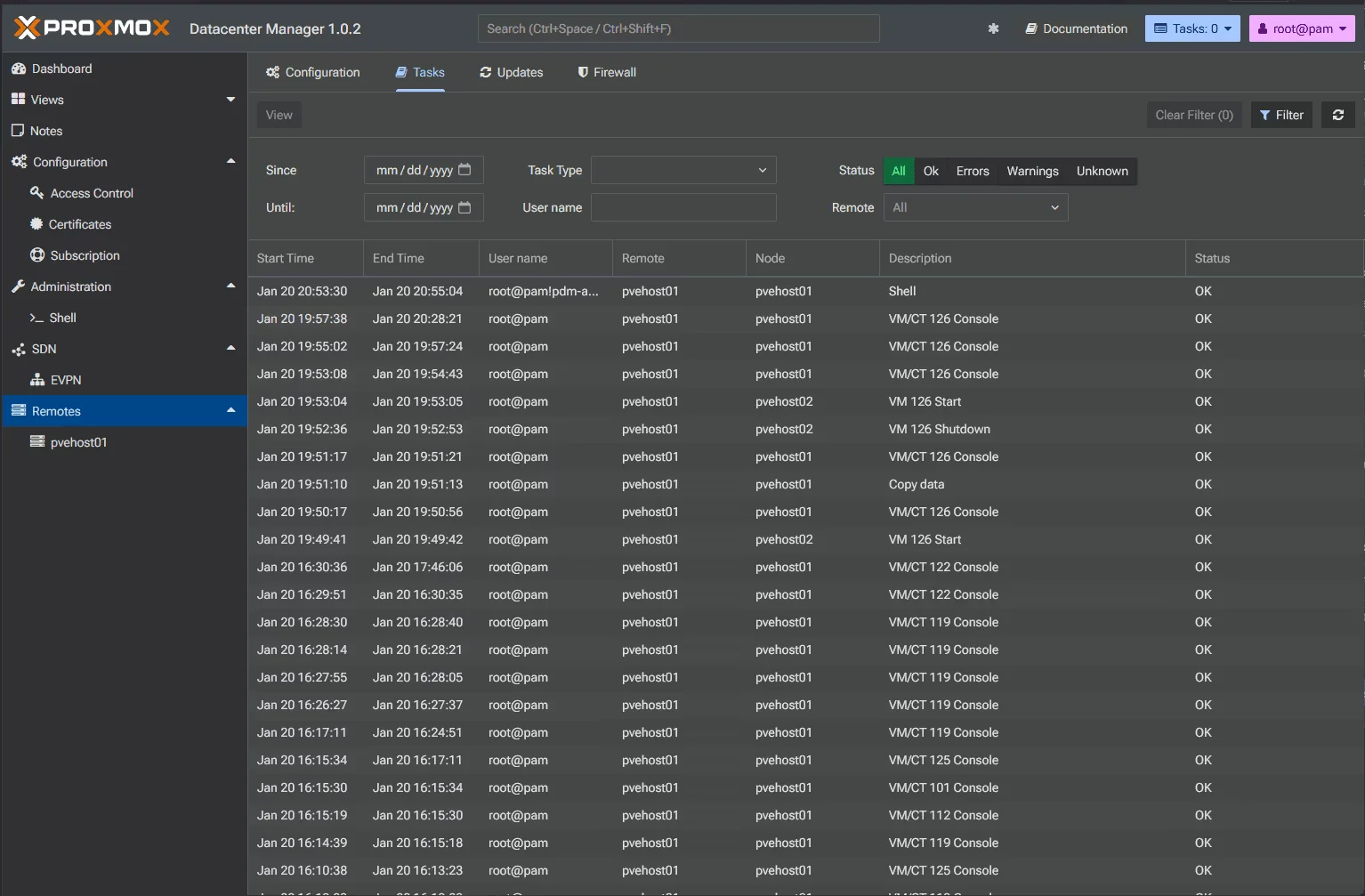 Unified task and log view with filtering by date, type, user, and status
Best For:
- Organizations running 2+ Proxmox clusters
- Environments with permanent infrastructure (not temporary test setups)
- Teams planning gradual infrastructure growth
- Administrators transitioning from VMware vSphere
Consider Waiting If:
- You have a single node or static cluster
- Your environment rarely changes
- You need advanced storage/network configuration from a central UI
For the right use case, PDM is the emerging standard tool for Proxmox environment management—reducing operational overhead while improving visibility and consistency across your virtualization infrastructure.